
A new staff member cannot open a client spreadsheet properly. A shared mailbox is being accessed by three people with one password. Files sit in personal cloud drives, and nobody is quite sure who owns them when someone leaves. These are the practical issues behind a Microsoft 365 vs Google Workspace decision - not just whether people prefer Outlook or Gmail.
Both platforms can provide business email, file storage, video meetings and document collaboration for small and medium-sized businesses. The better choice depends on how your team works, the documents it relies on, the systems it already uses and how much structure it needs around security and administration.
Microsoft 365 vs Google Workspace at a glance
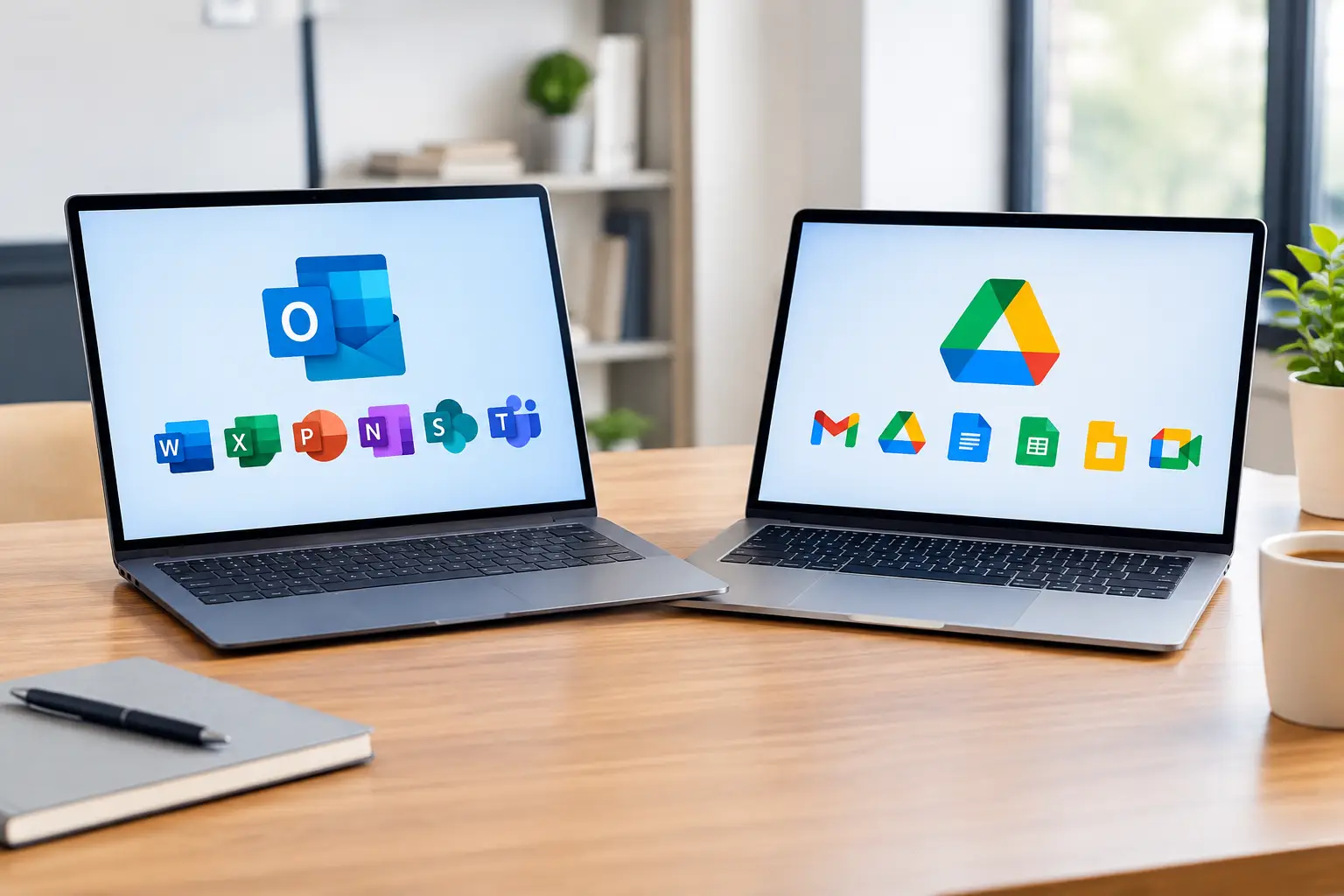
Microsoft 365 is usually the more natural fit for businesses that already depend on Outlook, Word, Excel and PowerPoint. It combines familiar desktop applications with cloud services including Exchange Online email, OneDrive, SharePoint and Microsoft Teams. It is particularly well suited to organisations with detailed spreadsheets, formal documents, shared mailboxes or Windows-based devices.
Google Workspace centres on Gmail, Google Drive, Docs, Sheets, Meet and Chat. Its strength is browser-based work and simple, simultaneous editing. A team can open the same document, see changes as they happen and avoid passing multiple versions back and forth by email.
Neither option is automatically better. A construction business managing complex Excel costings may lose capability by moving everything into Google Sheets. A small marketing team that works almost entirely in a browser may find Google Workspace easier to adopt and administer.
Where Microsoft 365 makes sense
For many established businesses across the Central Coast, Newcastle and the Hunter, Microsoft 365 is the practical choice because it works with the applications staff already know. That familiarity matters. A platform that looks powerful on paper still creates lost time if staff need to change the way they prepare quotes, reports and client documents overnight.
Desktop applications remain a real advantage
The web versions of Word, Excel and PowerPoint are useful, but the installed Microsoft applications remain more capable for complex work. Excel is the clearest example. Advanced formulas, pivot tables, Power Query, macros and detailed formatting often matter to accountants, engineering firms, manufacturers and operations teams.
Microsoft 365 also handles document formatting well when a file must look the same on a client’s computer, in a printed tender or as a PDF. Legal practices, financial services firms and professional service businesses often value that consistency.
Outlook, Teams and shared business information
Outlook and Exchange Online offer mature features for shared calendars, shared mailboxes, contacts and delegation. For a reception team or accounts department, that can be more than a convenience. It gives staff an organised way to manage enquiries sent to addresses such as accounts@ or reception@ without sharing passwords.
Teams can bring chat, meetings, calling and file collaboration together. It is not always necessary to use every Teams feature, but it can reduce the number of separate apps staff need to manage. SharePoint provides a more structured home for business files than saving everything in one person’s OneDrive.
The trade-off is complexity. Microsoft 365 has many settings and services. Without sensible setup, staff can end up with files spread across desktops, OneDrive, Teams and SharePoint, with no clear rule about where work belongs.
Where Google Workspace makes sense
Google Workspace is often easier for teams that want a clean, browser-first way to work. Staff can sign in from most devices and get straight to email, documents and shared files without installing a suite of desktop programs.
Straightforward real-time collaboration
Google Docs, Sheets and Slides were built around simultaneous editing. For teams preparing a proposal, roster, event plan or internal procedure together, the experience is simple. Comments, suggestions and version history are easy to understand, even for less technical staff.
Google Drive can also be easier to explain initially: personal files belong in My Drive, while business files belong in Shared Drives. Shared Drives are particularly valuable because the business, rather than an individual employee, owns the files. If someone leaves, their files do not leave with them.
A good fit for mobile and distributed teams
For organisations where staff are regularly on the road, at sites or moving between locations, Google Workspace can work well from a browser or mobile device. A trades business might use shared job photos, checklists and simple forms. A not-for-profit may collaborate with volunteers or committee members who use a mix of personal devices.
Its limitation is that Google’s office applications may not fully preserve complex Microsoft Office files. Basic documents usually convert well. Heavily formatted Word documents, formula-rich Excel workbooks and files containing macros can be affected. Testing your real files before a migration is essential.
Email is rarely the deciding factor
Gmail and Outlook are both reliable business email platforms when properly configured. The more useful question is how your organisation uses email.
Businesses with several shared inboxes, delegated access, room bookings and heavy Outlook use often favour Microsoft 365. Businesses whose staff prefer Gmail and do most work in a browser may prefer Google Workspace. Either platform can support a professional email address using your own domain.
Whichever you choose, protect accounts with multi-factor authentication. It should be standard practice, especially for email accounts, because email is often the starting point for invoice fraud, impersonation attempts and unauthorised password resets.
Security depends more on management than brand
Microsoft and Google both invest heavily in cloud security. For a business owner, the platform itself is only part of the picture. The day-to-day settings and processes determine whether the service is being used safely.
That includes requiring multi-factor authentication, disabling old accounts promptly, limiting administrator access, applying device security rules and monitoring suspicious sign-ins. It also includes training staff to question unexpected payment detail changes and convincing-looking emails.
Microsoft 365 may offer more granular controls at the right licence level, but more options do not automatically mean better protection. Google Workspace can be configured securely too. The right platform is one your business can manage consistently, with clear ownership of users, devices and data.
Do not assume either service replaces backups. Version history and deleted-item retention can help with everyday mistakes, but they are not the same as an independent backup and recovery plan. This matters where records, client files or operational documents are critical to the business.
Costs should be assessed beyond the licence
The monthly licence price is only one part of the cost. Include the time needed to set up users, migrate email and files, train staff, secure devices, manage access and support people when something goes wrong.
A cheaper licence can become expensive if staff spend hours converting documents or working around missing features. Conversely, paying for high-end Microsoft licences across every employee may not make sense when some staff only need email, meetings and basic file access.
A sensible approach is to match licences to roles. Office staff, managers and people who create complex documents may need different features from field staff, casual workers or shared-device users. Review those needs yearly rather than allowing licences to accumulate after staff changes.
Questions to ask before choosing
Before committing to either platform, look at what your business actually does during a normal week. Are advanced Excel files essential? Do staff collaborate live in the same documents? Are most computers Windows PCs? Do key industry applications integrate better with Microsoft or Google? Will employees need to work offline at times?
Also look beyond current preferences. Ask where client files should live, who can access them, how departing staff are offboarded and who will be responsible for updates and security settings. These decisions are easier to make before migration than after years of unstructured file growth.
For example, a medical or dental practice may prioritise controlled access, reliable shared mailboxes and document handling. A growing design agency may place more value on quick browser collaboration. An accounting firm may need Microsoft Excel compatibility but can still adopt clear cloud file-sharing practices.
Make the change carefully
Moving platforms is not just copying email from one place to another. Plan the migration of mailboxes, calendars, contacts, shared files, permissions and mobile devices. Decide what should be archived rather than moved, and test key documents and business applications before the final switch.
Give staff a simple explanation of what is changing: where files will be stored, how they will sign in, what to do on a mobile, and where to get help. The best technical setup can still fail if people return to old habits because the new process was unclear.
For most businesses, Microsoft 365 is the stronger fit when desktop Office applications, complex documents and Windows-based workflows are central. Google Workspace is often the better fit when browser-first collaboration and simplicity are the priority. If the choice is close, start with your real files, real workflows and real security responsibilities. That will provide a clearer answer than a feature comparison ever will.