
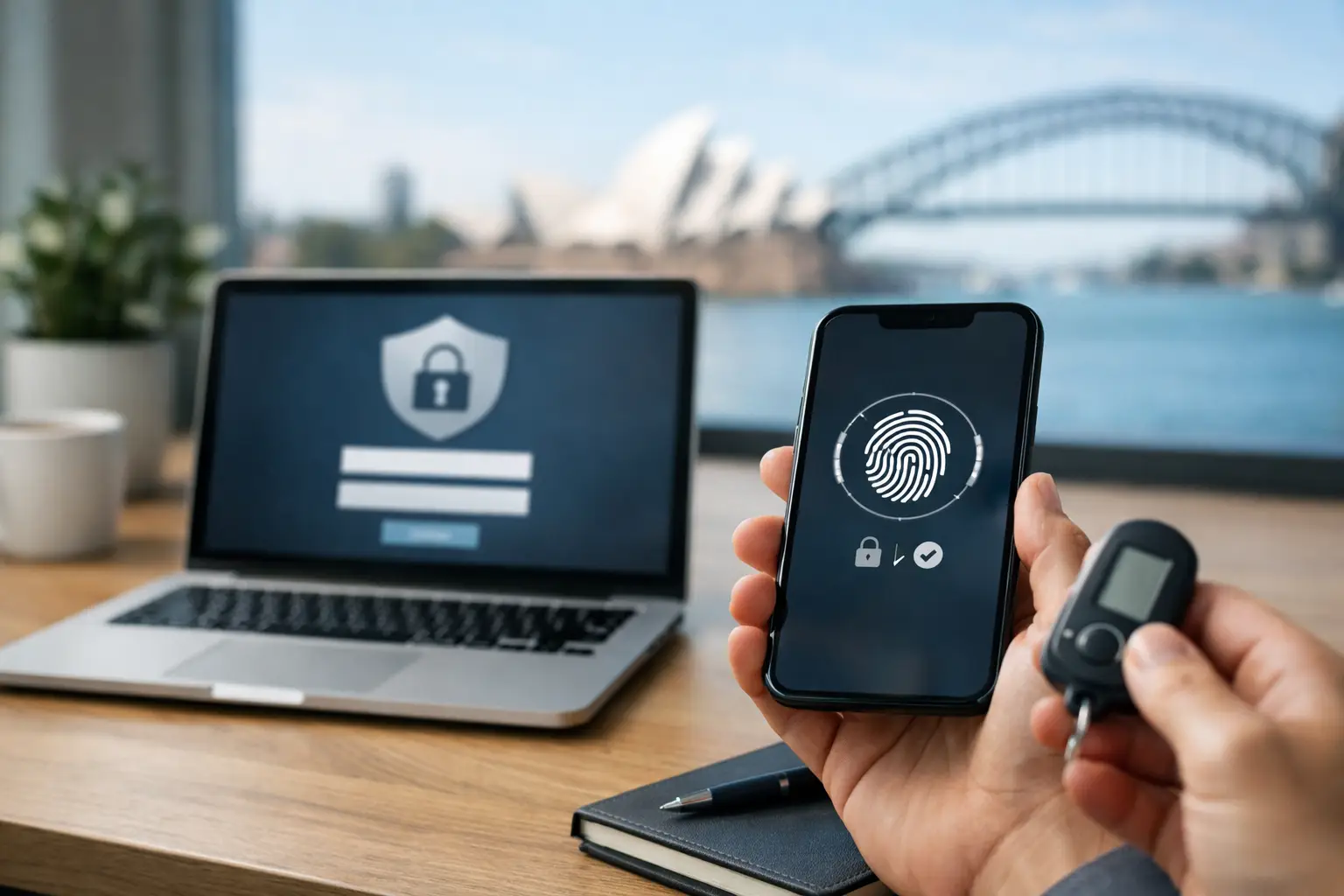
A stolen Microsoft 365 password can be enough to expose emails, invoices, client records and payment details. That is why MFA business requirements have moved from a sensible security improvement to a practical expectation for most Australian businesses. For a business with 5 to 100 staff, multi-factor authentication is one of the most effective ways to reduce the chance that a compromised password becomes a serious incident.
MFA, or multi-factor authentication, asks a person to prove their identity using more than just a password. They may approve a prompt on an authenticator app, enter a temporary code, use a security key, or confirm their sign-in with biometrics. The extra step is small, but it makes a stolen password far less useful to a criminal.
The question for business owners is not simply whether to turn MFA on. It is how to apply it properly, without creating unnecessary frustration for staff or locking people out at a critical moment.
What MFA business requirements mean in practice
There is no single Australian law that says every small business must use MFA for every system. However, requirements often come from several directions: the type of data you hold, contracts with clients, cyber insurance conditions, industry guidance and the security settings expected by software providers.
A medical practice, accounting firm or legal office may handle highly sensitive personal and financial information. A construction company may have fewer client records in its systems, but could still be exposed through email accounts, cloud files and invoices. In both cases, an email takeover can lead to fraud, privacy issues and disruption.
For many businesses, MFA is now expected at a minimum for Microsoft 365 or Google Workspace, remote access, cloud accounting, password managers, finance platforms and administrative accounts. If a system can access business data or authorise payments, it should be considered for MFA.
Cyber insurers commonly ask whether MFA is enabled for remote access, email and privileged accounts. The exact wording differs between policies, so it is worth reviewing renewal questions carefully rather than assuming a basic setup meets the insurer's definition. Some policies distinguish between MFA that staff can choose to bypass and MFA that is enforced for every sign-in.
Start with the systems that matter most
Trying to introduce MFA everywhere in one afternoon can cause confusion. A better approach is to identify the accounts where a compromised password would do the most damage.
Email should be at the top of the list. Business email is often used to reset passwords for other services, impersonate staff and intercept invoice conversations. Microsoft 365 administrators also need stronger protection because they can create users, change security settings and access a broad range of information.
Next, look at systems that hold customer information, process payroll, manage banking or allow remote access to your network. This may include Xero, MYOB, SharePoint, cloud file storage, remote desktop tools, practice management systems, CRM platforms and internet banking. Do not overlook third-party IT portals, phone system administration and social media accounts used for the business.
A useful rule is simple: if an account gives someone access to money, confidential information or the ability to disrupt operations, require MFA.
Not every application supports MFA equally
Older line-of-business software can complicate the picture. Some applications may not support modern authentication, while others rely on shared logins that cannot use MFA properly. This does not mean the risk should be accepted without review.
In these cases, consider whether the application can be updated, whether access can be limited to approved devices or networks, and whether the shared account can be replaced with individual user accounts. Sometimes a compensating control is needed temporarily, but it should have a clear owner and review date. An exception that is never revisited can become the easiest path into a business.
Choose an MFA method people will actually use
The method matters. SMS codes are better than a password alone, but they are not usually the preferred option for business-critical accounts. Text messages can be vulnerable to number porting scams, and they create problems when an employee changes mobiles or has poor reception.
Authenticator apps are generally a practical starting point for most small and medium-sized businesses. They can generate time-based codes or send approval prompts, and staff can use them without relying on mobile coverage. Where available, number matching is preferable to a simple approve or deny prompt. It helps reduce the risk of MFA fatigue, where a staff member repeatedly receives prompts and eventually approves one without checking it.
Security keys and passkeys offer stronger protection against phishing and are worth considering for directors, finance staff and system administrators. They may cost more and require a little more planning, but they can be an excellent fit for accounts with elevated access.
The right choice depends on your team. A warehouse worker using a shared workstation has different needs from an office-based bookkeeper or a field technician who signs in from a mobile. The goal is to make secure behaviour the easiest reasonable option, not to add a hurdle for its own sake.
Build MFA into your access policy
Technology settings are only part of the job. Clear MFA business requirements should be written into your access policy so staff, managers and IT providers know what is expected.
The policy does not need to be lengthy. It should state which systems require MFA, which methods are approved, who can approve exceptions and what happens when a person loses their mobile or changes device. It should also explain that MFA prompts must never be approved unless the employee is actively signing in themselves.
For shared business devices, define who is responsible for the account used on the device. Shared passwords make it difficult to trace activity and nearly impossible to remove access cleanly when someone leaves. Individual accounts are safer and make MFA manageable.
It is also sensible to require stronger controls for privileged accounts. An administrator should not use their everyday email account to make high-impact changes where a separate admin account is available. This limits the potential damage if a normal user account is compromised.
Plan the rollout before switching it on
A good rollout avoids the Monday morning problem where half the team cannot access email. Begin by confirming that employee mobile numbers and recovery email addresses are current. Then identify staff who do not have a suitable mobile, work in areas with limited reception or use shared devices.
Give employees a straightforward explanation of why the change is happening and what they need to do. A short guide with screenshots is often enough. Include the date MFA will become mandatory, the approved app, who to contact for help and a reminder not to share codes or approve unexpected prompts.
A staged rollout usually works well. Start with directors, administrators and finance staff, then a small group from across the business, before applying the settings more broadly. The pilot group will reveal practical issues, such as an outdated mobile operating system or an application that needs a different sign-in method.
Avoid allowing staff to permanently defer enrolment. A reasonable deadline and a supported process are better than an optional security setting that never becomes standard practice.
Recovery and offboarding are part of the requirement
MFA can create a new problem if recovery is poorly managed. If the only person with access to a business-critical account loses their mobile while travelling, the business still needs a safe way to restore access.
Set up at least two authorised administrators for key platforms. Keep recovery methods controlled, documented and reviewed. Recovery codes should not be stored in an employee's email inbox or saved as a photo on the same mobile used for MFA. A secure password manager with appropriate access controls is usually a better option.
When an employee leaves, remove their access promptly rather than waiting until the end of the week. Disable sessions, remove their MFA methods, transfer required files and check whether they had access to finance systems, client portals or shared passwords. This is particularly important for office managers, payroll staff and external contractors.
Check that MFA is actually being enforced
It is possible to have MFA enabled in a platform but still leave gaps. Legacy email protocols, weak exclusions, unmanaged administrator accounts and poorly configured conditional access rules can all undermine the intended protection.
Review sign-in reports regularly. Look for accounts without MFA, repeated failed attempts, unusual overseas sign-ins and new authentication methods added to user accounts. These checks do not need to become a full-time job, but they should be part of ongoing IT management rather than a one-off project.
For Microsoft 365 environments, policies can also consider the risk of a sign-in, the device being used and the location. The settings should be proportionate. Blocking every sign-in outside your office may not suit a business with travelling staff, but allowing unrestricted access from any unmanaged device may not suit either.
Simple IT helps Central Coast, Newcastle and Hunter businesses put these controls in place with a plan that fits their people and systems. The aim is not to make technology harder to use. It is to prevent an ordinary password mistake from becoming an expensive interruption to your business.
The most useful next step is to choose one high-risk system, confirm who has access and check whether MFA is enforced for every user. That single review often makes the path forward much clearer.